

AI agents are getting incredibly good at reasoning, summarizing, and planning. But to be truly useful in financial workflows, they need reliable context. Trading without structured, real-time market data means reacting to noise.
That's exactly why we built the TraderMade MCP Server.
Built with Python and FastMCP, this server connects MCP-capable AI clients directly to TraderMade's financial data. Instead of forcing your AI to piece together separate libraries, write one-off scripts, or struggle with massive JSON payloads, it provides the exact tools an agent needs to perform real market analysis—straight out of the box.
Quick Start
Get the TraderMade MCP Server on GitHub
You will need Python 3.10+ and a valid TraderMade API key (available by signing up on our website).
⚠️ Heads up: Method 1 will automatically overwrite your existing claude_desktop_config.json. If you have custom Claude Desktop settings you want to preserve, skip to Method 2.
📖 Practical Implementation Guide
Want to see what this looks like in a real chat? We have published a deep-dive tutorial that includes detailed prompt examples.View Implementation Tutorial
Method 1 — One-Command Setup (Recommended for most users)
No configuration files, no JSON editing. This single command sets up a virtual environment, installs all dependencies, and writes your Claude Desktop config automatically.
Open the TraderMade MCP project folder in VS Code, Terminal, or PowerShell and run the command for your operating system:
Windows:
.\run_tradermade_mcp.cmd --api-key=YOUR_TRADERMADE_API_KEY --bootstrap-only --configure-claude
macOS/Linux:
python run_tradermade_mcp.py --api-key=YOUR_TRADERMADE_API_KEY --bootstrap-only --configure-claude
When it finishes, you will see:
[tradermade-bootstrap] Bootstrap complete
[tradermade-bootstrap] Claude Desktop config written → .../claude_desktop_config.json
[tradermade-bootstrap] Restart Claude Desktop to apply the new server configuration.
Method 2 — Manual Setup (For developers)
Use this if you want full control over your Claude Desktop configuration.
Step 1 — Bootstrap the environment
Run this to create the virtual environment and install dependencies, without touching your Claude config:
Windows:
.\run_tradermade_mcp.cmd --api-key=YOUR_TRADERMADE_API_KEY --bootstrap-only
macOS/Linux:
python run_tradermade_mcp.py --api-key=YOUR_TRADERMADE_API_KEY --bootstrap-only
A venv folder will appear in your project directory once you see [tradermade-bootstrap] Bootstrap complete.
Step 2 — Update Claude Desktop config manually
Open Claude Desktop → Settings → Developer → Edit Config to access claude_desktop_config.json. Add the block below, replacing the placeholder path with your actual project folder.
Windows:
Note: Replace C:\path\to\repo with your actual folder path (e.g., C:\Users\FolderName\Desktop\tradermade-mcp-server). Use double backslashes (\\) throughout.
{
  "mcpServers": {
    "tradermade": {
      "command": "C:\\path\\to\\repo\\venv\\Scripts\\python.exe",
      "args": ["-m", "tradermade_mcp.server"],
      "env": {
        "TRADERMADE_API_KEY": "YOUR_TRADERMADE_API_KEY"
      }
    }
  }
}
macOS/Linux:
{
  "mcpServers": {
    "tradermade": {
      "command": "/path/to/repo/venv/bin/python",
      "args": ["-m", "tradermade_mcp.server"],
      "env": {
        "TRADERMADE_API_KEY": "YOUR_TRADERMADE_API_KEY"
      }
    }
  }
}
Verify Your Setup
Whichever method you used — save any open files, then fully restart Claude Desktop. Click the + icon near the chat input, open Connectors, and confirm that tradermade appears in the list.
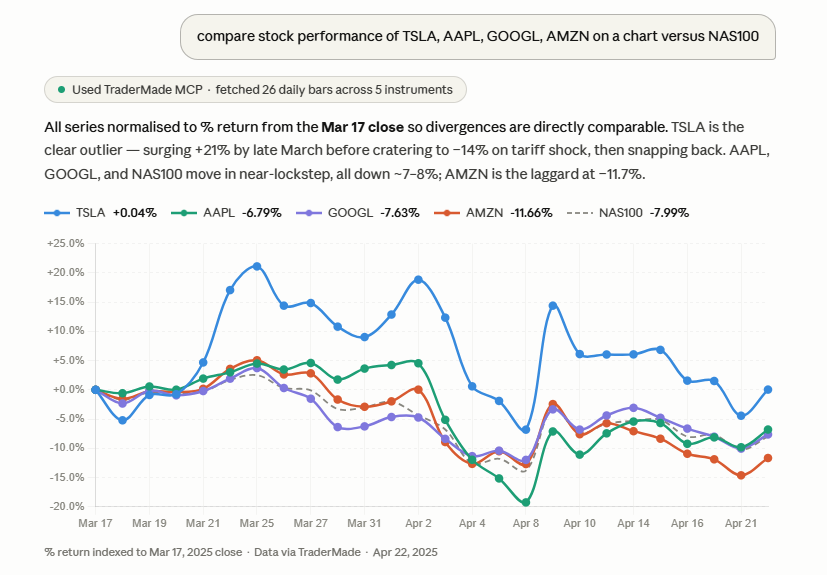
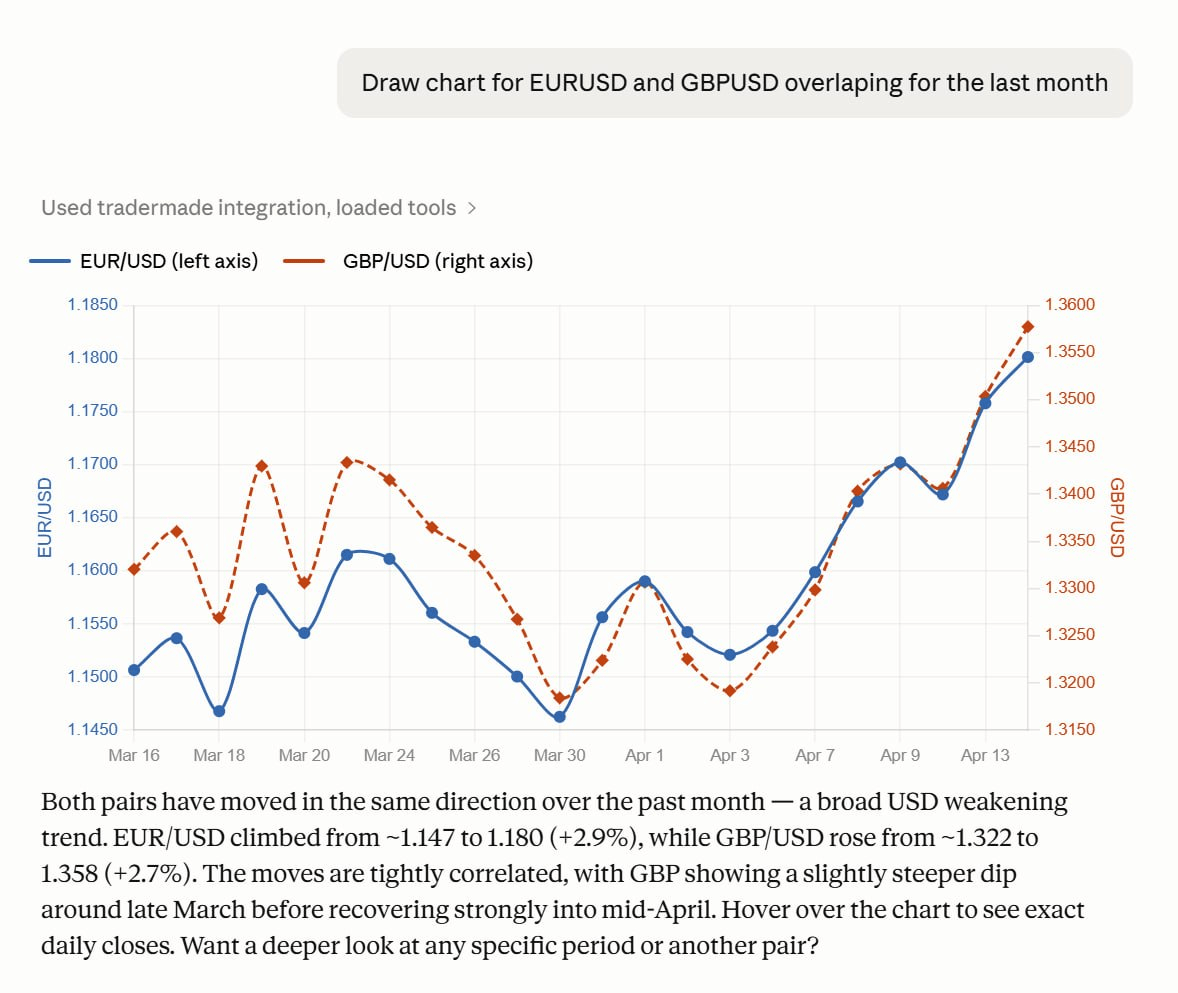
Once connected, you can start querying TraderMade data directly from Claude — ask for a live EURUSD rate, a gold price, a week of historical OHLC data, or ask it to visualize the data.
Market Coverage
TraderMade covers four asset classes through a single connection:
Forex — 75+ currency pairs
All major, minor, and exotic pairs. Includes the full G10 (EUR, GBP, USD, JPY, AUD, NZD, CAD, CHF, NOK, SEK) plus a wide range of emerging market currencies such as INR, BRL, MXN, ZAR, TRY, CNH, KRW, and more.
Precious Metals
Spot prices for Gold (XAU), Silver (XAG), Platinum (XPT), and Palladium (XPD) — quoted in USD and cross rates.
CFDs — Indices, Commodities & Stocks
- Indices: SPX500, NAS100, USA30, UK100 (FTSE), GER30 (DAX), FRA40 (CAC 40), JPN225 (Nikkei), HKG33 (Hang Seng), AUS200 (ASX)
- Commodities: Oil (WTI), Brent (UKOIL), Natural Gas, Copper
- Stocks: Apple, Amazon, Alphabet, Meta, Tesla, Netflix, Nvidia, Visa, Mastercard, Goldman Sachs, JPMorgan, Boeing, Pfizer, and more
Crypto — 48 coins
All major tokens including BTC, ETH, XRP, SOL, ADA, BNB, DOGE, DOT, LTC, LINK, and a broad range of DeFi and altcoin assets.
Across all of these markets, available data types include live rates, historical OHLC (daily, hourly, and minute), tick data, and streaming feeds. FX and crypto instruments additionally support the full depth of tick-level history, making them particularly well-suited for high-resolution backtesting, transaction cost analysis and other use case.
What the Server Can Do
We didn't just wrap an API; we built a comprehensive financial toolkit designed specifically for how AI models "think" and iterate. Here is what the server brings to your workflows:
Built-in Discovery and Documentation
Agents shouldn't have to guess how to format a request. The server includes intelligent discovery helpers, allowing the model to search for the correct TraderMade endpoint or local component before making a call.
Whether the user asks for live spot rates, tick data, chart-style analysis, or pivot calculations, the agent can inspect the endpoint documentation dynamically and ensure its parameters are perfect on the first try.
SQL Over Stored Market Data (The Game Changer)
A lot of financial AI demos stop at "the model can fetch a quote." But modern AI is iterative. The TraderMade MCP Server can optionally store fetched tabular results in a temporary, in-memory SQLite database.
Once the data is cached, the agent can run read-only SQL against it for follow-up analysis without having to repeatedly fetch and reformat the same payload. This preserves your context window and enables complex tasks like:
- Comparing multiple instruments side-by-side.
- Filtering a stored timeseries by precise dates or symbols.
- Calculating custom summaries on cached datasets.
Technical Analysis Components
We've included local indicator components so your agent can calculate common technical indicators directly inside the MCP workflow, rather than relying on external analysis stacks.
The agent can fetch a price series and immediately interpret momentum, volatility, and trend strength using:
- SMA & EMA (Moving Averages)
- RSI (Relative Strength Index)
- MACD (Moving Average Convergence Divergence)
- Bollinger Bands
- ATR & STOCH (Average True Range & Stochastic Oscillator)
- ADX (Average Directional Index)
Higher-Level Analytics Workflows
Beyond raw endpoints, the server includes workflow-style analytics tools built for the kinds of complex prompts users actually ask:
- Multi-market comparison: Outputs summaries, range tables, pivot tables, and consolidated charts.
- CSV validation: Automatically reconcile your internal CSVs against TraderMade historical OHLC data.
- Transaction Cost Analysis (TCA): Uses tick data when available, with automatic minute-bar fallback when it isn't.
Built for the AI "Loop"
Real, production-ready AI workflows don't just pull data once. An agent needs to discover the endpoint, fetch the data, store it, run mathematical calculations, and ask follow-up questions.
The TraderMade MCP Server is intentionally designed for this loop. By utilizing the SQLite cache and built-in technical indicators, the model stays grounded in structured data. It bridges the gap between simply fetching a price and actually interpreting market conditions.
This makes it the perfect foundation for building:
- Internal research assistants that summarize weekly market movements.
- Signal exploration workflows to backtest technical conditions across multiple pairs.
- Execution review copilots that run trade cost analysis.
It is also worth being clear about what "MCP" means in practice here. The server is not a charting widget or a dashboard. It is a structured interface that lets an AI agent call TraderMade's API the same way a developer would — fetching live quotes, pulling historical OHLC series, querying tick data, or running a pivot calculation — but with the agent deciding when and how to make each call based on the user's intent. The agent reasons about what data it needs, calls the right endpoint with the right parameters, and interprets the result. Charts are just one possible output; the underlying capability is full programmatic access to market data inside an AI workflow.
The Fastest Way to Build a Financial AI App
If you are actively building an application on top of an AI model, the TraderMade MCP Server dramatically shortens your development loop. Instead of wiring up API calls, handling authentication, normalizing responses, and building out indicator logic yourself, all of that is already done. You connect once and your agent has a full financial data layer from day one.
This means you can spend your iterations on what actually matters — your product logic, your prompts, and your user experience — rather than reinventing data infrastructure every time you prototype a new idea.
What's Next?
As Model Context Protocol adoption grows, the line between standard chat interfaces and autonomous financial agents is disappearing.
The full step-by-step setup, client configuration, and deployment instructions are coming next in a dedicated technical tutorial. But the key takeaway is this: the TraderMade MCP Server isn't just about retrieving market data. It is about making that data genuinely actionable inside AI-driven workflows.